
Additional Template Configurations
When working with a template in AI Lab → Templates, beyond defining properties and registering twins, you can further enrich each template with structured metadata that the mobile app and dashboards use to dynamically render KPI tiles, model activation controls, and AI recommendation cards.
These configurations are available as dedicated tabs inside any template: KPIs, Models, and Recommendations. Because they are defined at the template level, every twin registered against that template automatically inherits them. You configure once and it applies across all your assets.
Before continuing with the following article, make sure to check out Tutorial: Anomaly Detection Solution, as the examples mentioned below are a continuation of the main one detailed there.
KPIs
KPIs (Key Performance Indicators) let you define measurable targets against any template property. Each KPI compares the live value of a datapoint to a constant target using an operator, and the result is used by the mobile app to render health indicators per twin.
To add a KPI, navigate to the KPIs tab inside your template and click Edit → + Add KPI.
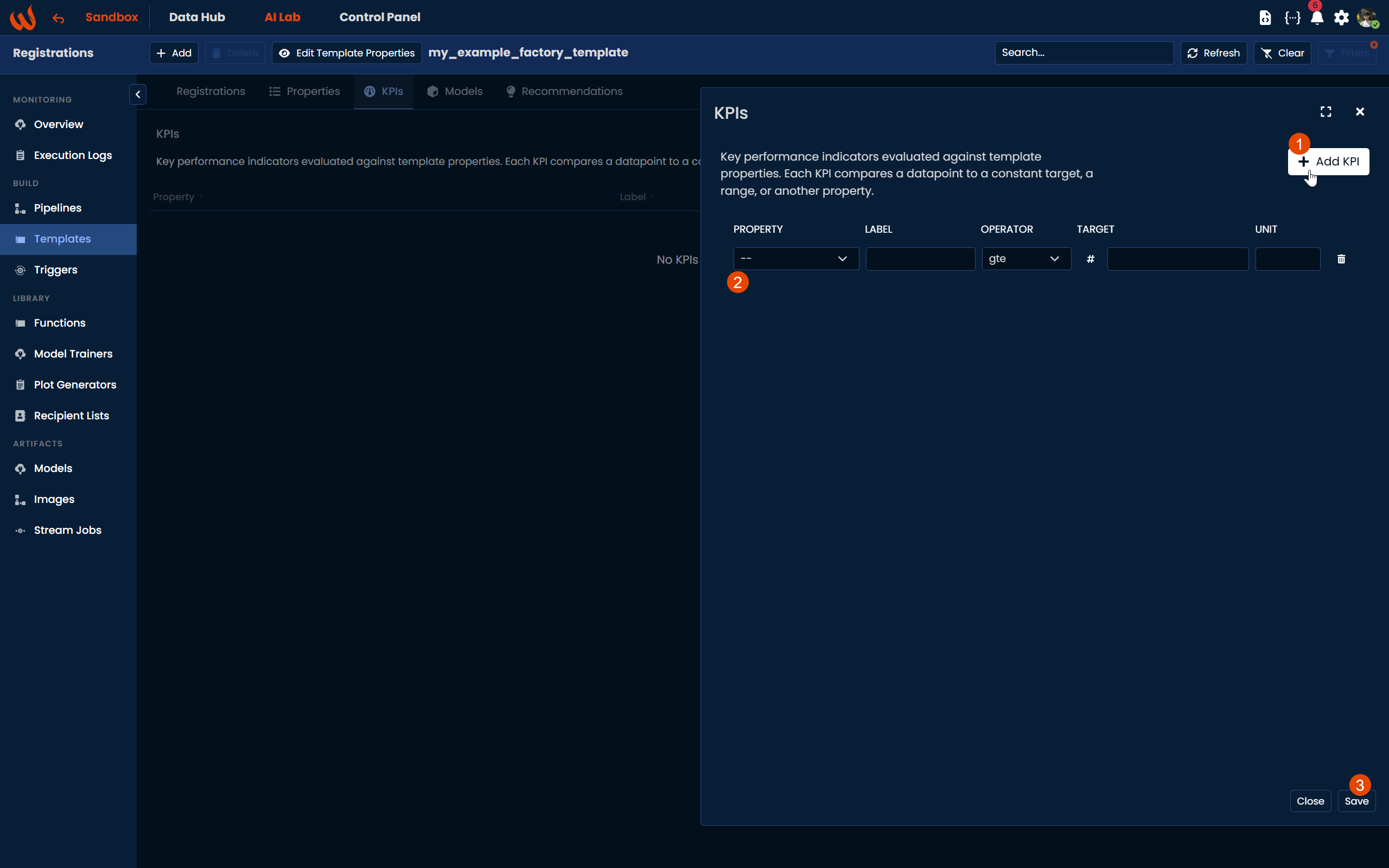
Each KPI has the following fields:
- Property: the template property whose value will be evaluated. Must be a
datapointtype. - Label: the display name shown in dashboards and the mobile app.
- Operator: the comparison logic:
gt,gte,lt,lte,eq, orbetween. - Target: the numeric threshold to compare against. For
between, provide a[low, high]range. - Unit: the unit displayed alongside the value.
Examples: Bearing Anomaly Detection
In the my_example_factory_template, the pipeline writes a continuous anomaly score to the bearing_anomaly datapoint for each motor. We define a KPI to track whether that score stays within healthy bounds:
| Field | Value |
|---|---|
| Property | bearing_anomaly |
| Label | Bearing Anomaly Score |
| Operator | lte |
| Target | 0.3 |
| Unit | 1 (Unitless fraction) |
The Isolation Forest model outputs a score between 0 and 1. A value at or below 0.3 indicates normal vibration patterns; anything above signals a potential bearing fault. Using lte with a target of 0.3 means the KPI passes when the motor is healthy and fails when an anomaly is detected.
Since bearing_anomaly is a template property, this single KPI definition automatically evaluates against mt1_bearing_anomaly for Motor 1 and mt2_bearing_anomaly for Motor 2, with no per-twin configuration required.
Range target example(between)
To verify that a bearing's vibration stays within an expected operating range rather than just below a ceiling, use the between operator with a [low, high] array as the target. Values outside that range will cause the KPI to fail.
| Field | Value |
|---|---|
| Property | Bearing1 |
| Label | Bearing 1 Vibration Range |
| Operator | between |
| Target | [0.1, 0.8] |
| Unit | 1 (Unitless fraction) |
This means the KPI passes only when the live value of Bearing1 is between 0.1 and 0.8. A reading below 0.1 may indicate a sensor issue or a stopped motor, while a reading above 0.8 signals excessive vibration.
Dynamic target example (targetProperty)
Instead of comparing against a fixed number, you can compare a datapoint against another template property that is resolved per twin at runtime. This is useful when each twin has its own calibrated threshold.
To switch to this mode, click the # button next to the Target field until it shows the chain icon, then select the property to compare against.
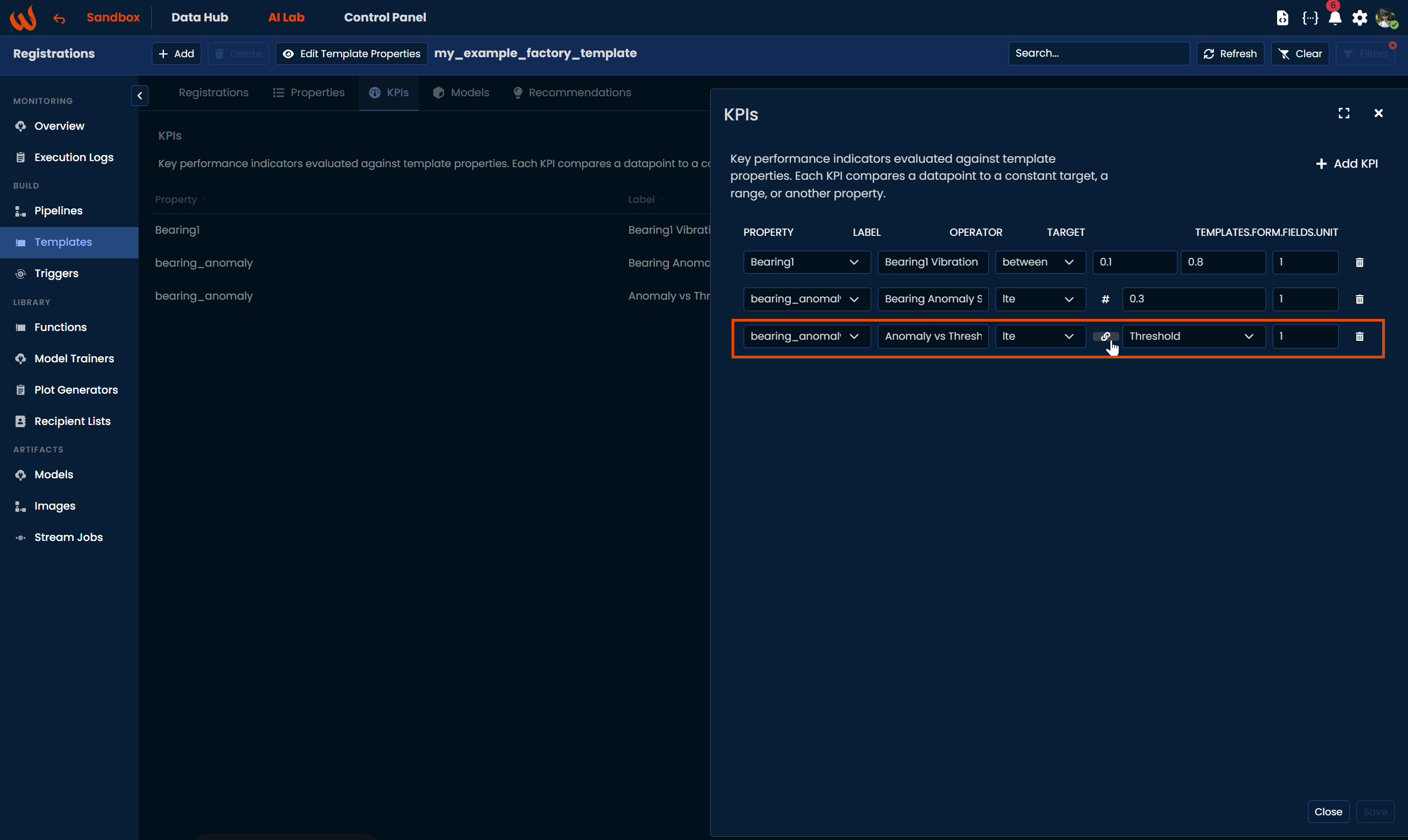
| Field | Value |
|---|---|
| Property | bearing_anomaly |
| Label | Anomaly vs Threshold |
| Operator | lte |
| Target | (empty) |
| targetProperty | Threshold |
| Unit | 1 (Unitless fraction) |
Here, Threshold is a float property on the template whose value is set individually per twin during registration. Instead of every motor sharing the same 0.3 cutoff, each motor is evaluated against its own calibrated threshold. When target is not set, targetProperty takes over and the comparison becomes fully dynamic.
Models
The Models tab lets you attach ML models to a template by referencing their model key. An optional Activation Property links the model to a template datapoint that acts as an on/off switch. When the value of that datapoint changes, it triggers or deactivates the model. If no activation property is set, the model runs continuously.
To attach a model, navigate to the Models tab and click Edit → + Attach Model.
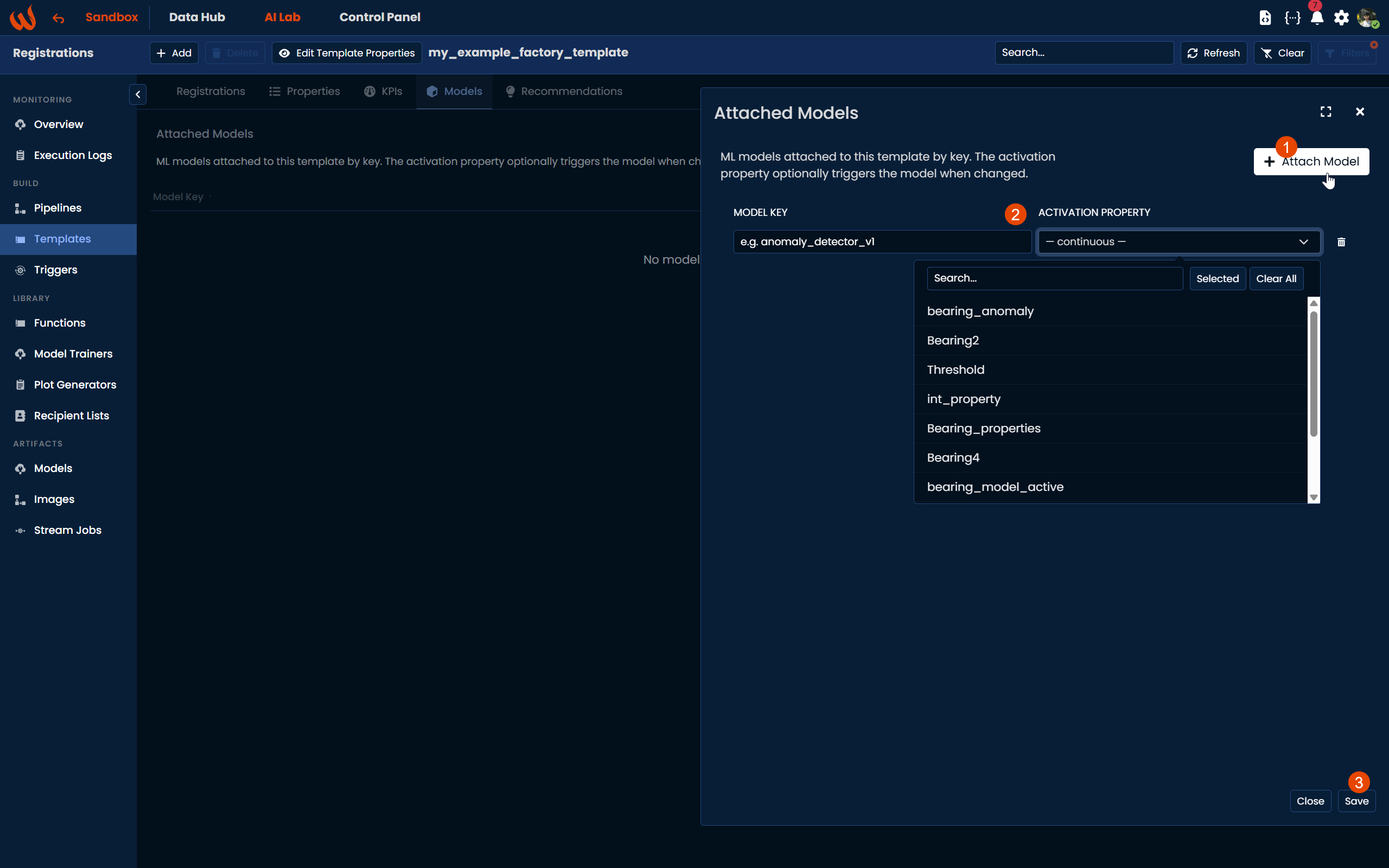
Each entry has the following fields:
- Model Key: the key of the ML model stored in AI Lab → Models.
- Activation Property: a
datapointproperty from the template that operators can toggle to enable or disable the model. Leave as-- continuous --if the model should always run.
Example: Bearing Anomaly Detection
The Isolation Forest model trained in the bearing_anomaly_pipeline is stored under the key bearing_anomaly_pipeline. We attach it to the template and link it to the bearing_model_active property, which was added to my_example_factory_template as a datapoint. This allows operators to enable or disable anomaly detection per motor directly from the mobile app by writing to that datapoint.
| Field | Value |
|---|---|
| Model Key | bearing_anomaly_pipeline |
| Activation Property | bearing_model_active |
When a twin is evaluated, the platform resolves bearing_model_active to the actual datapoint registered for that specific motor, so toggling the model on Motor 1 has no effect on Motor 2.
Model running continuously
If you want the model to run on every pipeline execution regardless of any sensor state, leave the Activation Property as -- continuous --. The field will be saved as an empty string on the API side, and the model will never be gated by a datapoint value.
| Field | Value |
|---|---|
| Model Key | bearing_anomaly_pipeline |
| Activation Property | (leave it empty as -- continuous --) |
This is useful during initial setup or testing, when you want to make sure the model runs on every cycle before introducing activation logic.
Recommendations
Recommendations group related template properties together to give the mobile app a structured view of what the AI model is suggesting, what is currently measured, and what the target setpoint is. Each recommendation ties a measured value, a setpoint, and an AI-generated output together under a single named entry, optionally linked to the model that produces it.
To add a recommendation, navigate to the Recommendations tab and click Edit → + Add Recommendation.
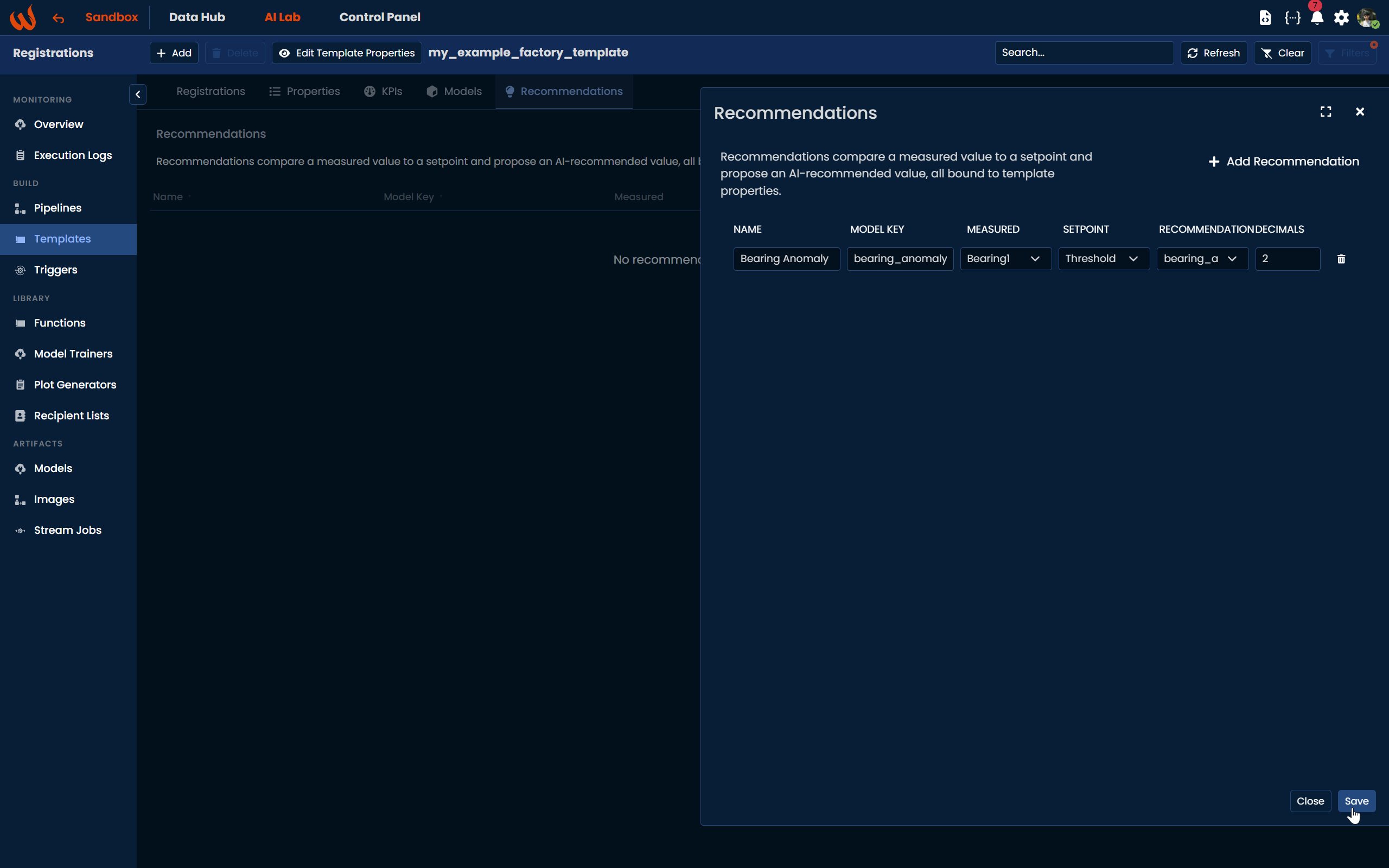
Each entry has the following fields:
- Name: a human-readable label for this recommendation group, shown in the mobile app.
- Model Key (optional): the model responsible for generating the recommendation value.
- Measured: the template property representing the current real-world sensor reading.
- Setpoint: the template property representing the target or threshold value.
- Recommendation: the template property where the AI model writes its suggested output.
- Decimals: the number of decimal places used when displaying values.
Example: Bearing Anomaly Detection
For our bearing use case, the recommendation surfaces the live vibration reading alongside the configured threshold and the anomaly score produced by the model:
| Field | Value |
|---|---|
| Name | Bearing Anomaly |
| Model Key | bearing_anomaly_pipeline |
| Measured | Bearing1 |
| Setpoint | Threshold |
| Recommendation | bearing_anomaly |
| Decimals | 2 |
This tells the mobile app that for each motor, the model bearing_anomaly_pipeline is comparing the live Bearing1 vibration reading against the Threshold value defined per twin and writing its anomaly assessment to bearing_anomaly. The app can then render a recommendation card showing all three values side by side for each registered motor, without any hardcoding per asset.
Updated 5 months ago